Tour and Features
The reason why we are the #1 WordPress training plugin


The reason why we are the #1 WordPress training plugin
The plugin is fully brandable and customizable. If you want to replace our imagery with your own to give your client a better branded experience, it’s easily done. You can even add your own videos.
If you only offer certain pieces of functionality, like pages and not posts, then you can turn off individual videos or entire sections of videos in the options page.
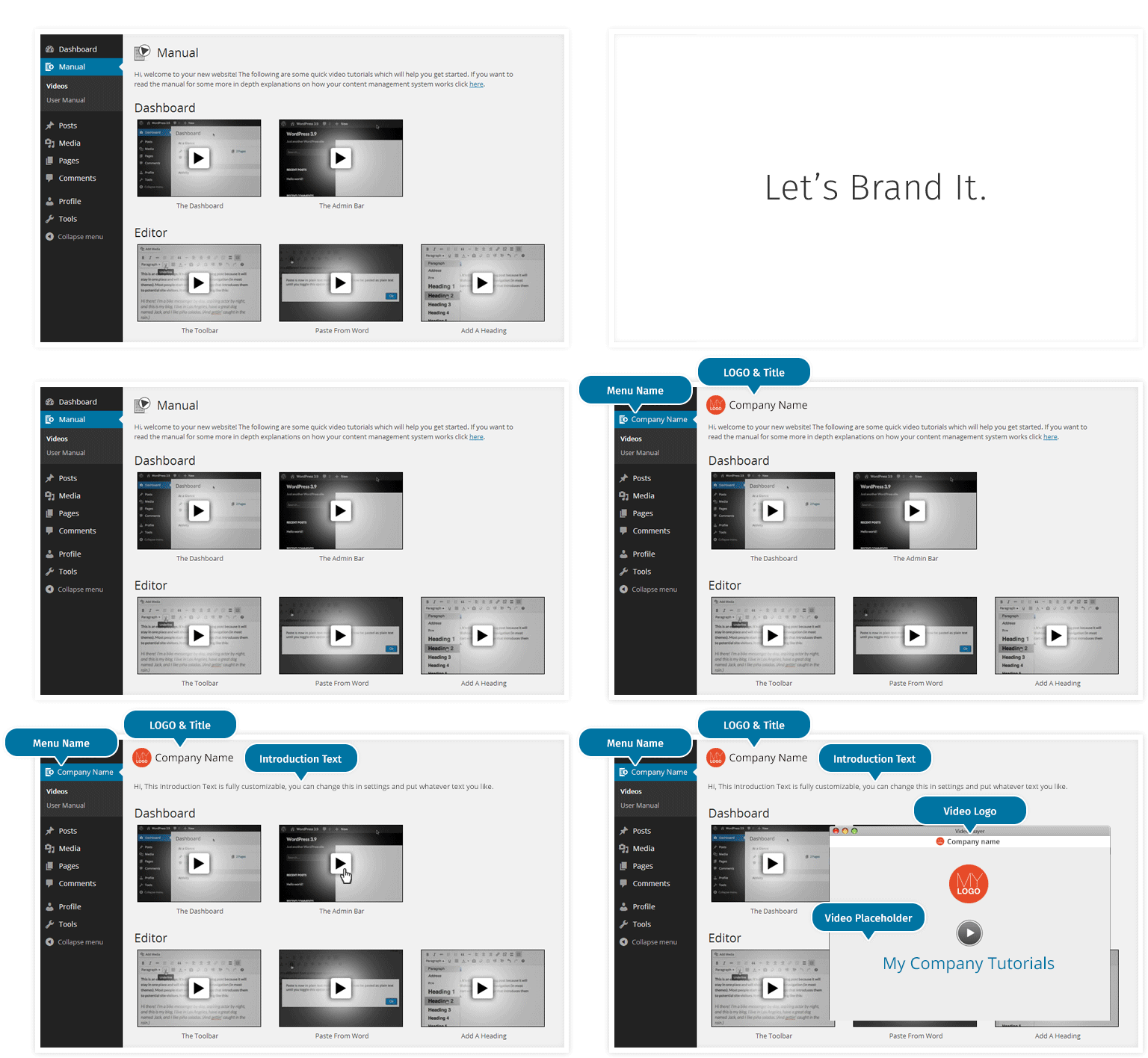

With a huge collection of high-quality video tutorials, the plugin covers every aspect of using WordPress as an Editor. We use non-technical language and clear graphics that your clients will easily understand.

Due to the populartity of the WooCommerce plugin for ecommerce sites, we've included an instructional video on using this highly valued plugin.

SEO Yoast is seen as an essential plugin by many WordPress Developers. We've therefore included it in the video tutorials due to popular demand.

We received permission from Google to add their official Analytics Academy videos. Please note: We do not make or maintain these videos.

Gravity Forms is easily the most popular forms plugin available on WordPress and we have added 5 videos which cover all of its functionality.

Beaver Builder is the most popular front end editor used by our subscribers so by popular demand we have added the official 21 video tutorials. We refer to it by its white label name of Page Builder.
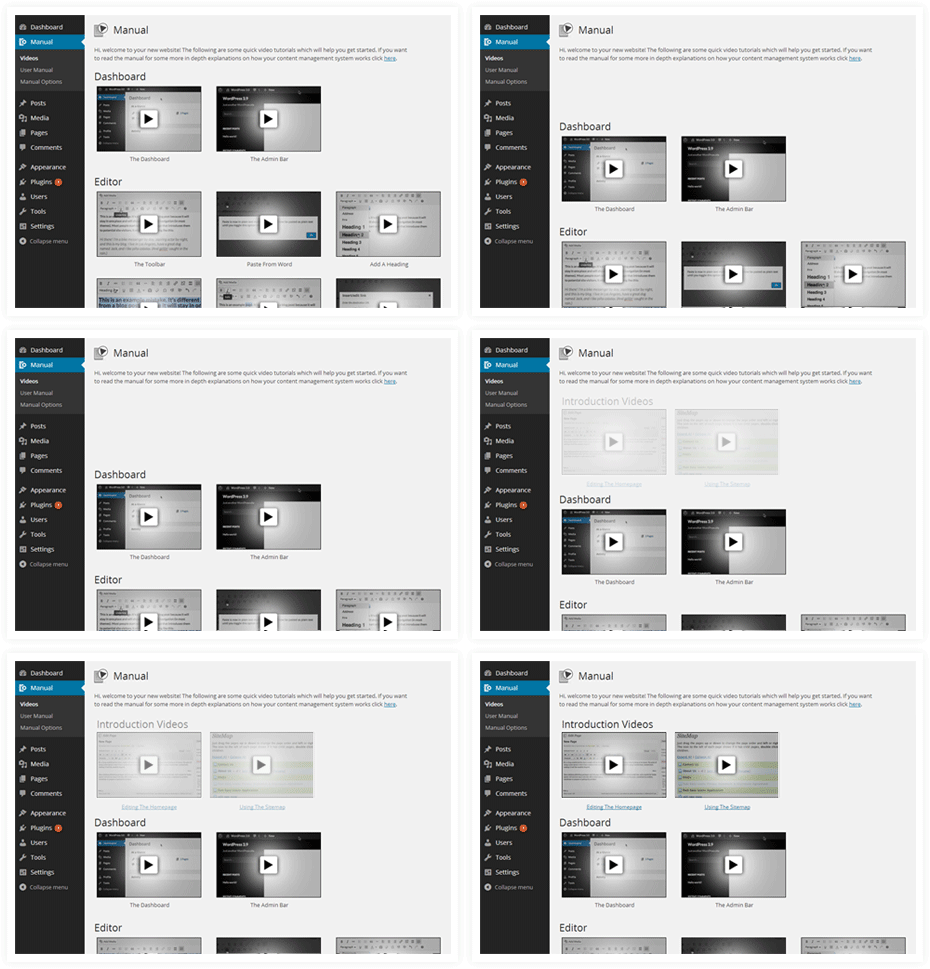
We’ve added this option to allow for the addition of personalised information for your client. This could be in the form of a personal welcome or a functionality that you have written or always use, such as custom post types.
Simply paste the title and the url of your own video into the options page and your video will then display right alongside ours in your clients dashboard.
Simple and professional.

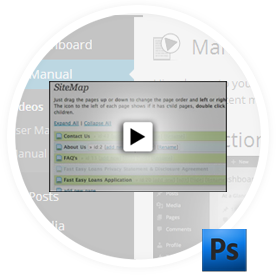
If you want the videos thumbnails to look consistent, then we recommend you use our Photoshop thumbnail template
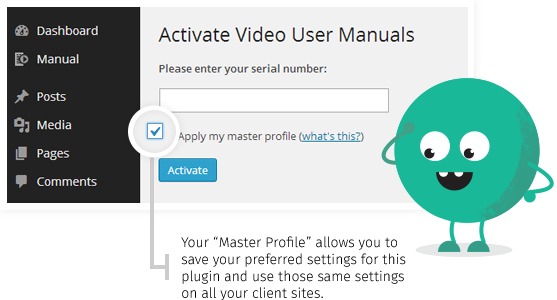
We have made this as simple as possible for you to set up. Once you’ve subscribed, you'll receive the plugin and a serial code. Simply install it like any other WordPress plugin and paste your serial code into the activation screen, then hey presto - you're done!
The plugin is set up for easy customisation, allowing for the integration of your company logo and your own videos. By doing this, your client will think that you’ve developed the whole thing just for them. So professional!
We know that clients really appreciate when you can hand over a manual to them. It makes your company look more professional and gives the client peace of mind. We provide a Word and PDF document with every subscription that you can customise and rebrand as your own.
Oh and by the way... the Word document and PDF are updated with each new version of WordPress - just another thing you don’t need to worry about!


Automatically Updated
As WordPress updates, we automatically produce new videos and a new version of the written manual. We cover version 2.8 through to the latest release and update the manual after each stable release.

Hide Settings from Admins
To ensure your client doesn’t change any of the settings by mistake in the early stages, we include an option to hide the settings from Admins. This ensures you don’t get any extra headaches from lost or changed plugins by clients!

Over 5 Years of Experience
We’re not an overnight company. We’ve been developing and updating this software for over 5 years. We pride ourselves on our product and service. That’s why we keep growing and improving!
| Single | Developer | Saver | |
|---|---|---|---|
| Your brand instead of ours | ✔ | ✔ | ✔ |
| 89+ Video Tutorials | ✔ | ✔ | ✔ |
| WooCommerce Videos | ✔ | ✔ | ✔ |
| Yoast SEO Videos | ✔ | ✔ | ✔ |
| Gravity Forms Videos | ✔ | ✔ | ✔ |
| Official Beaver Builder Videos | ✔ | ✔ | ✔ |
| Official Google Analytics Videos | ✔ | ✔ | ✔ |
| Embed videos on membership site | ✔ | ✔ | ✔ |
| Number of Installs | 1 client website | Unlimited client websites * | Unlimited client websites * |
| $70 flat rate Optional renewal | $24/month First month only $1 |
$240/year 2 months free | |
|
If you are a hosting company, theme company or WordPress trainer, contact us to discuss other licensing options. All sales are subject to our * terms and conditions and prices are in USD. |
|||

Packed full of tips and advice on how to save hours on every project and build a real WordPress business. Join the 20,000 other WordPress developers who are using these ideas.